BTUI - Bruce's Text User Interface Library
BTUI is a minimal, embeddable, single-header-file Text User Interface (TUI) library and alternative to bloatware like ncurses. BTUI aims to be less than 1% the size of ncurses, while also providing a better API for the programmer who is not afraid to roll up their sleeves and manage their own state. If you want a drop-in TUI library that lets you switch into TUI mode, write some strings to the screen with 24-bit color, and get user keypresses in real-time without line buffering, then this is the library for you! BTUI also has language bindings for both Lua and Python.
Note: Currently, BTUI is around 0.5% the size of ncurses, but some margin for growth is reserved for supporting additional features and constant declarations.
Cleanup by Default
Once BTUI is enabled, you can manually disable TUI Mode (e.g. if you want to
temporarily drop back to the regular shell). However, BTUI will always
automatically put the terminal back in a normal state when your program exits,
even in the event of a segfault or other blockable signal. BTUI can't do
anything about unblockable signals like SIGKILL though, so don't use killall -9 myprog unless you want a gunked up terminal (just use kill myprog
instead). If your terminal does get gunked up, you can always run the reset
shell command to reset it.
Easy 24-bit Colors
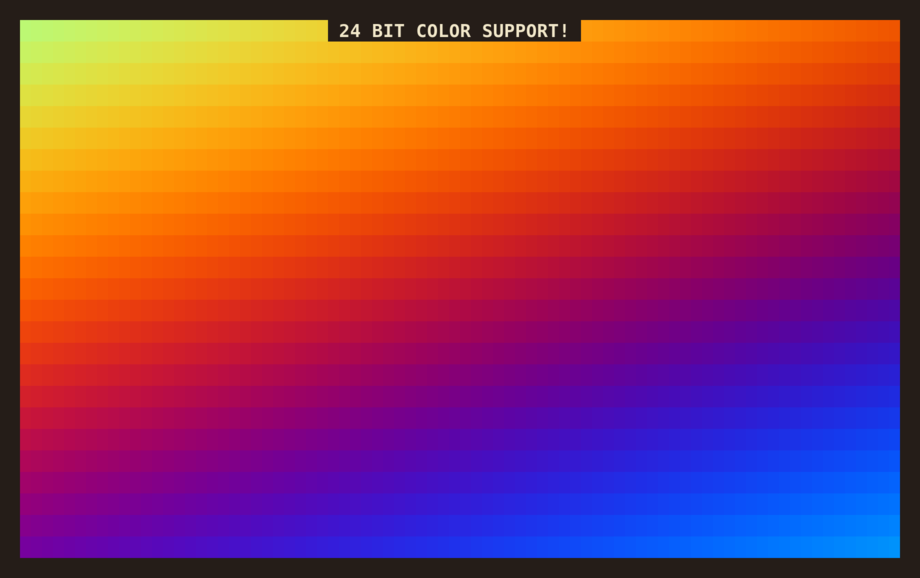
BTUI supports 24-bit colors. It's dead easy, just btui_set_fg(bt, r, g, b)
(foreground color) or btui_set_bg(bt, r, g, b) (background color). Try make rainbow to see a demo of 24-bit colors in action. This has been supported by
most terminals for aeons, but most TUI applications still default to using the
same 8 colors. It doesn't have to be that way! (Although you can still use
those colors with btui_set_attributes(bt, BTUI_BG_RED | BTUI_FG_BLACK) and so
forth.)
User Input
BTUI lets you get keyboard input for all keypress events handled by your
terminal, including mouse clicking and dragging. Warning: BTUI also hooks in to
Ctrl-c, Ctrl-d, Ctrl-z, and other keyboard events that normally have very
specific behavior in terminal programs. If you want that specific behavior,
then you'll have to implement it manually. The upside is that you're able to
handle it gracefully and do whatever cleanup you want. If you want to provide
Ctrl-z suspend functionality, you can use btui_suspend(bt).
Warning: xterm control sequences do not support all key combinations (e.g.
Ctrl-9) and some key combinations map to the same control sequences (e.g.
Ctrl-m and Enter, or Ctrl-8 and Backspace). Escape in particular is a
little bit odd, since it's only recognized as an escape keypress if some amount
of time has passed after pressing it with no new bytes being sent. Most of this
oddity is completely unavoidable, that's just the how terminals work. Escape
key handling can be improved slightly by polling with zero timeout.
Tips and Tricks
For best performance, try to structure your program to take advantage of terminal scrolling. It's much faster than redrawing every line on the screen.
Don't assume a string's length (in bytes) is the same as its width on the screen. Unicode characters and terminal escape sequences violate this assumption.
Don't clear the screen unless you need to. It causes a lot of unnecessary redrawing.
A good pattern to follow is: draw things from left to right, clearing to the right after each item. Then, once everything has been drawn, clear to the bottom of the screen. If you follow this approach, you won't have to worry too much about the screen width of the things you're writing. Also, the terminal won't flicker, since you're never blanking the whole screen, only part of a line at a time.
Text wrapping must be done manually, since many terminals do not support wrapping around to any point other than the first column, which is useless for any TUI uses other than text on the far left of the screen.
Language Bindings
BTUI comes with bindings for C, Python, and Lua.
C API
BTUI has the following C function definitions, as well as definitions for some constants, including terminal escape values and keycodes.
int     btui_clear(btui_t *bt, int mode);
void    btui_disable(btui_t *bt);
void    btui_draw_linebox(btui_t *bt, int x, int y, int w, int h);
void    btui_draw_shadow(btui_t *bt, int x, int y, int w, int h);
btui_t* btui_create(btui_mode_t mode);
#define btui_enable() btui_create(BTUI_MODE_TUI)
void    btui_fill_box(btui_t *bt, int x, int y, int w, int h);
int     btui_flush(btui_t *bt);
int     btui_getkey(btui_t *bt, int timeout, int *mouse_x, int *mouse_y);
int     btui_hide_cursor(btui_t *bt);
char    *btui_keyname(int key, char *buf);
int     btui_keynamed(const char *name);
int     btui_move_cursor(btui_t *bt, int x, int y);
#define btui_printf(bt, ...) fprintf((bt)->out, __VA_ARGS__)
int     btui_puts(btui_t *bt, const char *s);
int     btui_scroll(btui_t *bt, int firstline, int lastline, int scroll_amount);
int     btui_set_attributes(btui_t *bt, attr_t attrs);
int     btui_set_bg(btui_t *bt, unsigned char r, unsigned char g, unsigned char b);
int     btui_set_bg_hex(btui_t *bt, int hex);
int     btui_set_cursor(btui_t *bt, cursor_t cur);
int     btui_set_fg(btui_t *bt, unsigned char r, unsigned char g, unsigned char b);
int     btui_set_fg_hex(btui_t *bt, int hex);
int     btui_show_cursor(btui_t *bt);
int     btui_suspend(btui_t *bt);
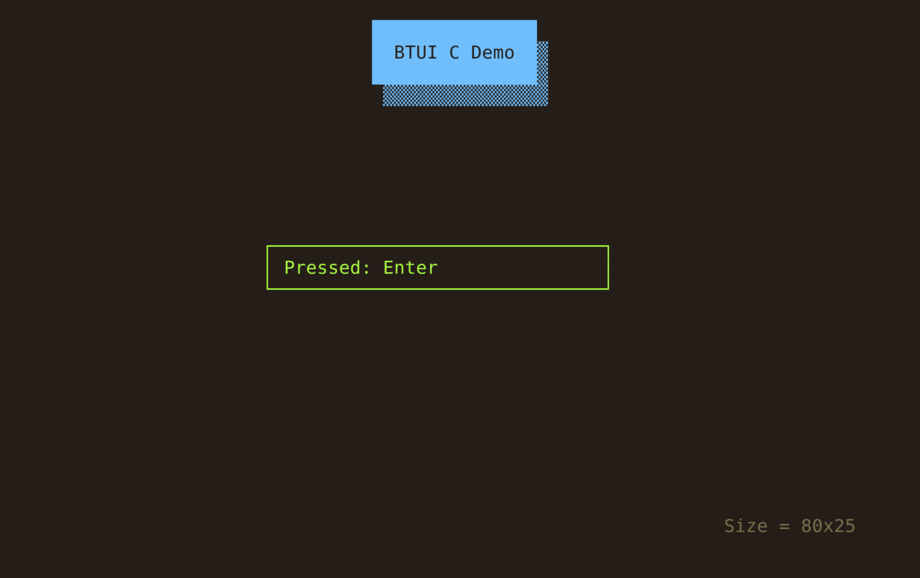
See C/test.c and C/rainbow.c for example usage. You
can run make testc to run the C test demo and make rainbow to run the
rainbow C demo.
Lua API
The Lua library returns a function that takes one argument: a function that will
be called with a BTUI object, which can be used to do TUI actions. Errors will
be propagated out of the function, but the terminal will be cleaned up nicely
before the error is printed. Here's a simple example program:
require("btui")(function(bt)
    -- Run this code within the TUI, using "bt" as the TUI object
    ...
end)

bt:clear(type="screen") -- Clear the terminal. Options are: "screen", "right", "left", "above", "below", "line"
bt:disable() -- Disables btui
bt:enable() -- Enables btui (if previously disabled)
bt:fillbox(x,y,w,h) -- Fill the given rectangle with space characters
bt:flush() -- Flush the terminal output. Most operations do this anyways.
bt:getkey(timeout=-1) -- Returns a keypress (and optionally, mouse x and y coordinates). The optional timeout argument specifies how long, in tenths of a second, to wait for the next keypress.
bt:height() -- Return the screen height
bt:hidecursor() -- Hide the cursor
bt:linebox(x,y,w,h) -- Draw an outlined box around the given rectangle
bt:move(x, y) -- Move the cursor to the given position. (0,0) is the top left corner.
bt:scroll(firstline, lastline, amount) -- Scroll the given screen region by the given amount.
bt:setattributes(attrs...) -- Set the given attributes
bt:setcursor(type) -- Set the cursor type
bt:shadow(x,y,w,h) -- Draw a shaded shadow to the bottom right of the given rectangle
bt:showcursor() -- Show the cursor
bt:suspend() -- Suspend the current process and drop back into normal terminal mode
bt:unsetattributes(attrs...) -- Unset the given attributes
bt:width() -- Return the scren width
bt:withattributes(attrs..., fn) -- Set the given attributes, call fn, then unset them
-- R,G,B values are in the range [0.0, 1.0]:
bt:withbg(r,g,b, fn) -- Set the background color to (r,g,b), call fn, then reset the background color to default
bt:withdisabled(fn) -- Calls "fn" with btui disabled, then re-enables btui
bt:withfg(r,g,b, fn) -- Set the foreground color to (r,g,b), call fn, then reset the foreground color to default
bt:write() -- Write text to the terminal
See Lua/test.lua for example usage. Run make lua to build the
Lua library, and make testlua to run the Lua BTUI demo.
Python API
The Python library has one main function: btui.open(). This is a context
manager, which can be used to safely wrap TUI applications.
import btui

with btui.open() as bt:
    # Your code here...
The returned object has the following methods:
class BTUI:
    @contextmanager
    def attributes(self, *attrs):
    @contextmanager
    def bg(self, r, g, b): # R,G,B values are [0.0, 1.0]
    @contextmanager
    def buffered(self):
    def clear(self, mode='screen'):
    def disable(self):
    @contextmanager
    def disabled(self):
    def draw_shadow(self, x, y, w, h):
    def enable(self):
    @contextmanager
    def fg(self, r, g, b): # R,G,B values are [0.0, 1.0]
    def fill_box(self, x, y, w, h):
    def flush(self):
    def getkey(self, timeout=None):
    @property
    def height(self):
    def hide_cursor(self):
    def move(self, x, y):
    def outline_box(self, x, y, w, h):
    def scroll(self, firstline, lastline=None, amount=None):
    def set_attributes(self, *attrs):
    def set_bg(self, r, g, b): # R,G,B values are [0.0, 1.0]
    def set_cursor(self, cursor_type="default"):
    def set_fg(self, r, g, b): # R,G,B values are [0.0, 1.0]
    def show_cursor(self):
    def suspend(self):
    def unset_attributes(self, *attrs):
    @property
    def width(self):
    def write(self, *args, sep=''):
    def write_bytes(self, b):
See Python/test.py for example code, which can be run with
make testpython.
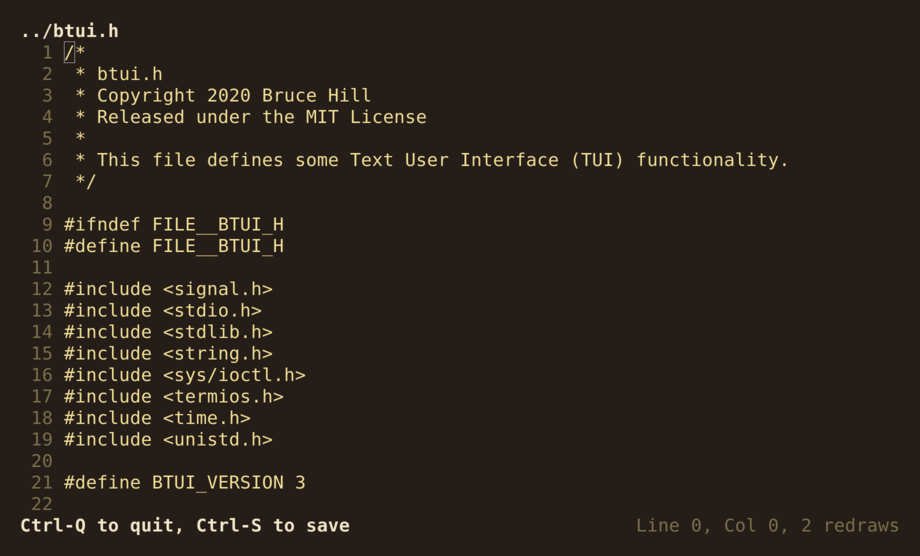
BTUI also comes with a demo text editor program, bed (BTUI Editor), at
Python/bed.py (around 200 lines of code). It's fairly
performant and it showcases a nontrivial example program using BTUI. Usage:
./bed.py <file> (must be run locally).
The Python API also allows you to run BTUI in "debug" mode
btui.open_btui(debug=True), which simply adds a timer delay (default: 50ms)
after every BTUI write call, which is useful for getting an intuitive feel for
where performance bottlenecks are occurring. You can run ./bed.py -d <file>
to see this in action.
FAQ
Why not use ncurses? It's already installed almost everywhere!
Ncurses is pretty ubiquitous among amateur TUI developers, however it's a really messy paradigm to work with, and it comes with hundreds of thousands of lines of code bloat. There's also tons of compatibility problems across different versions of ncurses. Using ncurses is a headache, and writing a wrapper around ncurses just adds more bloat on top of a mountain of bloat. So, if you want to write a really nice TUI library for your language of choice, BTUI is a good option for a foundation to build off of. BTUI handles all the low-level C stuff like setting terminal attributes and interrupt handlers, but after that, it mostly just gets out of the way and lets you write the bytes you want, with just a few helper functions that make writing the right bytes easy.
Why not use termbox?
Termbox is an okay library, but its API is
built around modifying terminal cells one-at-a-time using function calls. This
approach has two major flaws: it's very bad for performance and it makes the
API very awkward to use if you want to write strings to the screen. Termbox
uses its own custom internal write-buffering to reduce write calls and help
performance, but in my experience, there is still noticeable lag when doing
large amounts of writes compared to just using plain ol' C fprintf()
buffering.
Also, termbox is intended to be used as a system-installed library, but BTUI is
much simpler to use: just drop the .h file into your project and #import "btui.h"!
License
BTUI is released under the MIT license. See LICENSE for details.
1 # BTUI - Bruce's Text User Interface Library3 BTUI is a minimal, embeddable, single-header-file Text User Interface (TUI)4 library and alternative to bloatware like ncurses. BTUI aims to be less than 1%5 the size of ncurses, while also providing a better API for the programmer who6 is not afraid to roll up their sleeves and manage their own state. If you want7 a drop-in TUI library that lets you switch into TUI mode, write some strings to8 the screen with 24-bit color, and get user keypresses in real-time without line9 buffering, then this is the library for you! BTUI also has language bindings for12 14 Note: Currently, BTUI is around 0.5% the size of ncurses, but some margin for15 growth is reserved for supporting additional features and constant16 declarations.18 ## Cleanup by Default20 Once BTUI is enabled, you can manually disable TUI Mode (e.g. if you want to21 temporarily drop back to the regular shell). However, BTUI will always22 automatically put the terminal back in a normal state when your program exits,23 even in the event of a segfault or other blockable signal. BTUI can't do27 shell command to reset it.29 ## Easy 24-bit Colors34 most terminals for aeons, but most TUI applications still default to using the35 same 8 colors. It doesn't have to be that way! (Although you can still use37 forth.)39 41 ## User Input43 BTUI lets you get keyboard input for all keypress events handled by your44 terminal, including mouse clicking and dragging. Warning: BTUI also hooks in to46 specific behavior in terminal programs. If you want that specific behavior,47 then you'll have to implement it manually. The upside is that you're able to48 handle it gracefully and do whatever cleanup you want. If you want to provide51 Warning: xterm control sequences do not support all key combinations (e.g.54 little bit odd, since it's only recognized as an escape keypress if some amount55 of time has passed after pressing it with no new bytes being sent. Most of this56 oddity is completely unavoidable, that's just the how terminals work. Escape57 key handling can be improved slightly by polling with zero timeout.59 ## Tips and Tricks61 * For best performance, try to structure your program to take advantage of62 terminal scrolling. It's much faster than redrawing every line on the screen.64 * Don't assume a string's length (in bytes) is the same as its width on the65 screen. Unicode characters and terminal escape sequences violate this66 assumption.68 * Don't clear the screen unless you need to. It causes a lot of unnecessary69 redrawing.71 * A good pattern to follow is: draw things from left to right, clearing to the72 right after each item. Then, once everything has been drawn, clear to the73 bottom of the screen. If you follow this approach, you won't have to worry74 too much about the screen width of the things you're writing. Also, the75 terminal won't flicker, since you're never blanking the whole screen, only76 part of a line at a time.78 * Text wrapping must be done manually, since many terminals do not support79 wrapping around to any point other than the first column, which is useless80 for any TUI uses other than text on the far left of the screen.82 ## Language Bindings84 BTUI comes with bindings for C, Python, and Lua.86 ### C API88 BTUI has the following C function definitions, as well as definitions for some89 constants, including terminal escape values and keycodes.92 int btui_clear(btui_t *bt, int mode);93 void btui_disable(btui_t *bt);94 void btui_draw_linebox(btui_t *bt, int x, int y, int w, int h);95 void btui_draw_shadow(btui_t *bt, int x, int y, int w, int h);96 btui_t* btui_create(btui_mode_t mode);97 #define btui_enable() btui_create(BTUI_MODE_TUI)98 void btui_fill_box(btui_t *bt, int x, int y, int w, int h);99 int btui_flush(btui_t *bt);100 int btui_getkey(btui_t *bt, int timeout, int *mouse_x, int *mouse_y);101 int btui_hide_cursor(btui_t *bt);102 char *btui_keyname(int key, char *buf);103 int btui_keynamed(const char *name);104 int btui_move_cursor(btui_t *bt, int x, int y);105 #define btui_printf(bt, ...) fprintf((bt)->out, __VA_ARGS__)106 int btui_puts(btui_t *bt, const char *s);107 int btui_scroll(btui_t *bt, int firstline, int lastline, int scroll_amount);108 int btui_set_attributes(btui_t *bt, attr_t attrs);109 int btui_set_bg(btui_t *bt, unsigned char r, unsigned char g, unsigned char b);110 int btui_set_bg_hex(btui_t *bt, int hex);111 int btui_set_cursor(btui_t *bt, cursor_t cur);112 int btui_set_fg(btui_t *bt, unsigned char r, unsigned char g, unsigned char b);113 int btui_set_fg_hex(btui_t *bt, int hex);114 int btui_show_cursor(btui_t *bt);115 int btui_suspend(btui_t *bt);116 ```120 rainbow C demo.122 ### Lua API124 The Lua library returns a function that takes one argument: a function that will126 be propagated out of the function, but the terminal will be cleaned up nicely127 before the error is printed. Here's a simple example program:130 require("btui")(function(bt)131 -- Run this code within the TUI, using "bt" as the TUI object132 ...133 end)135 bt:clear(type="screen") -- Clear the terminal. Options are: "screen", "right", "left", "above", "below", "line"136 bt:disable() -- Disables btui137 bt:enable() -- Enables btui (if previously disabled)138 bt:fillbox(x,y,w,h) -- Fill the given rectangle with space characters139 bt:flush() -- Flush the terminal output. Most operations do this anyways.140 bt:getkey(timeout=-1) -- Returns a keypress (and optionally, mouse x and y coordinates). The optional timeout argument specifies how long, in tenths of a second, to wait for the next keypress.141 bt:height() -- Return the screen height142 bt:hidecursor() -- Hide the cursor143 bt:linebox(x,y,w,h) -- Draw an outlined box around the given rectangle144 bt:move(x, y) -- Move the cursor to the given position. (0,0) is the top left corner.145 bt:scroll(firstline, lastline, amount) -- Scroll the given screen region by the given amount.146 bt:setattributes(attrs...) -- Set the given attributes147 bt:setcursor(type) -- Set the cursor type148 bt:shadow(x,y,w,h) -- Draw a shaded shadow to the bottom right of the given rectangle149 bt:showcursor() -- Show the cursor150 bt:suspend() -- Suspend the current process and drop back into normal terminal mode151 bt:unsetattributes(attrs...) -- Unset the given attributes152 bt:width() -- Return the scren width153 bt:withattributes(attrs..., fn) -- Set the given attributes, call fn, then unset them154 -- R,G,B values are in the range [0.0, 1.0]:155 bt:withbg(r,g,b, fn) -- Set the background color to (r,g,b), call fn, then reset the background color to default156 bt:withdisabled(fn) -- Calls "fn" with btui disabled, then re-enables btui157 bt:withfg(r,g,b, fn) -- Set the foreground color to (r,g,b), call fn, then reset the foreground color to default158 bt:write() -- Write text to the terminal159 ```164 ### Python API167 manager, which can be used to safely wrap TUI applications.170 import btui172 with btui.open() as bt:173 # Your code here...174 ```176 The returned object has the following methods:179 class BTUI:180 @contextmanager181 def attributes(self, *attrs):182 @contextmanager183 def bg(self, r, g, b): # R,G,B values are [0.0, 1.0]184 @contextmanager185 def buffered(self):186 def clear(self, mode='screen'):187 def disable(self):188 @contextmanager189 def disabled(self):190 def draw_shadow(self, x, y, w, h):191 def enable(self):192 @contextmanager193 def fg(self, r, g, b): # R,G,B values are [0.0, 1.0]194 def fill_box(self, x, y, w, h):195 def flush(self):196 def getkey(self, timeout=None):197 @property198 def height(self):199 def hide_cursor(self):200 def move(self, x, y):201 def outline_box(self, x, y, w, h):202 def scroll(self, firstline, lastline=None, amount=None):203 def set_attributes(self, *attrs):204 def set_bg(self, r, g, b): # R,G,B values are [0.0, 1.0]205 def set_cursor(self, cursor_type="default"):206 def set_fg(self, r, g, b): # R,G,B values are [0.0, 1.0]207 def show_cursor(self):208 def suspend(self):209 def unset_attributes(self, *attrs):210 @property211 def width(self):212 def write(self, *args, sep=''):213 def write_bytes(self, b):214 ```219 221 BTUI also comes with a demo text editor program, bed (BTUI Editor), at223 performant and it showcases a nontrivial example program using BTUI. Usage:226 The Python API also allows you to run BTUI in "debug" mode228 after every BTUI write call, which is useful for getting an intuitive feel for230 to see this in action.232 ## FAQ234 ### Why not use ncurses? It's already installed almost everywhere!237 amateur TUI developers, however it's a really messy paradigm to work with, and238 it comes with hundreds of thousands of lines of code bloat. There's also tons239 of compatibility problems across different versions of ncurses. Using ncurses240 is a headache, and writing a wrapper around ncurses just adds more bloat on top241 of a mountain of bloat. So, if you want to write a really nice TUI library for242 your language of choice, BTUI is a good option for a foundation to build off243 of. BTUI handles all the low-level C stuff like setting terminal attributes and244 interrupt handlers, but after that, it mostly just gets out of the way and lets245 you write the bytes you want, with just a few helper functions that make246 writing the right bytes easy.248 ### Why not use termbox?251 built around modifying terminal cells one-at-a-time using function calls. This252 approach has two major flaws: it's very bad for performance and it makes the253 API very awkward to use if you want to write strings to the screen. Termbox254 uses its own custom internal write-buffering to reduce write calls and help255 performance, but in my experience, there is still noticeable lag when doing257 buffering.259 Also, termbox is intended to be used as a system-installed library, but BTUI is263 ## License